How to save games on the R36S
You can save in two ways on the R36S: with the game’s own save, made from inside the game the way the cartridge did it, or with a save state, a snapshot the emulator takes at any moment. Both end up as files on a microSD card. Turning the console off properly and backing up the card is what keeps them safe.
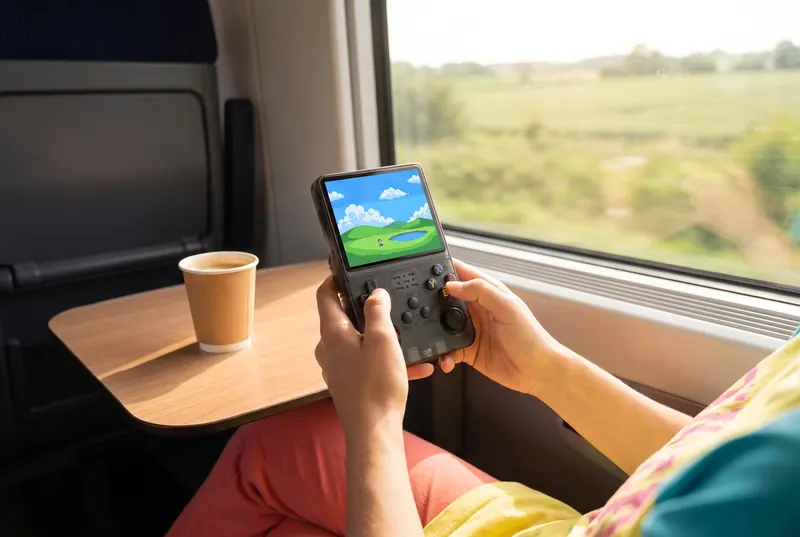
How do you save games on the R36S?
The systems used across the R36 family pair an EmulationStation menu, where you pick a game, with RetroArch and its emulator cores, which run it. Saving happens in two places:
- In the game: use its own save point, save menu or password, as on the console it was made for. The emulator writes that save to a file.
- In the emulator: open its quick menu while playing and save a state. It freezes the whole game at that instant, even where the game itself would not let you save.
The button combination that opens the quick menu or saves a state depends on the system installed on your card and its settings, so check the controls or help screen of your own system rather than a list written for another build.
In-game saves or save states: which should you trust?
Use the in-game save as your main save. It is small, it belongs to the game, and it keeps working when the system or the emulator is updated.
Use save states as a bookmark: before a hard section, or when you need to stop right now. A save state is tied to the emulator that made it, so an update of the system or of that emulator can leave old states unreadable. If a game matters to you, make a real in-game save as well.
A simple habit works well: save in the game at every save point, and keep one or two save states per game as a safety net rather than a long pile of them.
Where are R36S saves stored?
On a microSD card, like everything else on the console: the system starts from its card, and your files sit on the cards too. On two-slot models, the system is on the TF1 card and your games on the second card; the single-slot R36 Ultra X keeps everything on one card.
Depending on the system, save files sit next to the game files or in a separate saves folder, and save states in a folder of their own. That is why a card backup is also a save backup.
How do you turn off the R36S without losing a save?
- Save in the game, or save a state, and give it a second or two to finish.
- Quit the game and go back to the main menu.
- Turn the console off from the menu, with the shutdown option of the system.
Cutting the power in the middle of a write, or letting the battery run flat while you play, is the usual way to lose a save or damage a card. Charge before the battery is empty, and do not pull a card while the console is on. If the console stops responding, give it a moment before you force it off: a write in progress may still finish.
How do you back up your saves on a computer?
- Turn the console off from the menu and take out the card that holds your games.
- Put it in a card reader on a computer and copy the save and save state folders, or better, the whole card.
- Keep the copy in two places, and date it.
- Put the card back in the same slot, then turn the console on.
On models with built-in Wi-Fi, such as the R36S Plus and the R36XX, the system may also let you move files from a computer on the same network, depending on what is installed. A copy on a computer is still the safest.
Our microSD guide explains how to image the system card as well, which is worth doing once, before anything goes wrong.
What if a save will not load?
- Check that you opened the same game file with the same emulator: saves are matched to both.
- A save state made before an update may no longer load; load the in-game save instead.
- If the card itself is failing, stop writing to it and restore your last backup to a new card from a recognized brand.
- Keep older backups for a while: the save you need may be from last month, not from yesterday.
None of this changes with the model: the R36S, the R36 Max and the rest of the family all keep their saves on microSD cards.